 Cursor IDE
Using Apertis Models
Setting Up API Key
You can integrate Apertis into Cursor to use its models.
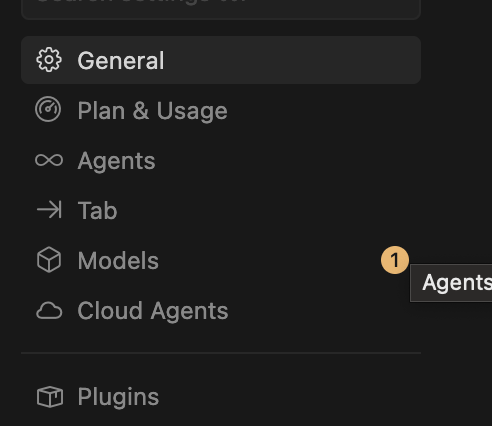
- Open Cursor Settings and navigate to the Models section from the sidebar.
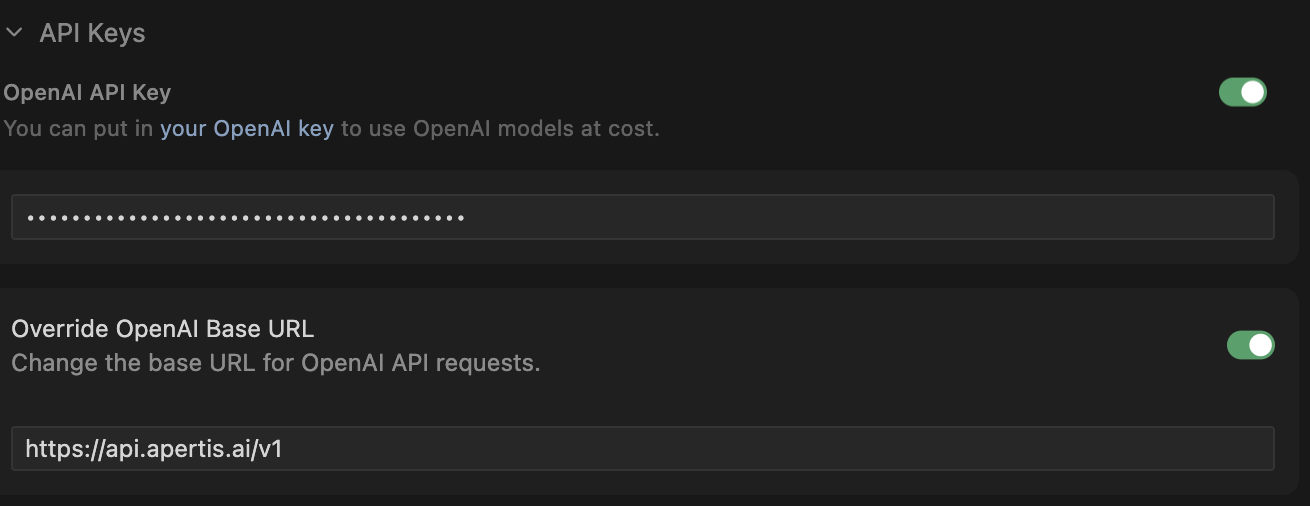
- Scroll down to the API Keys section. In the OpenAI API Key field, enter your Apertis API Key. Enable the Override OpenAI Base URL toggle and enter the following URL:
https://api.apertis.ai/v1
Enabling Models
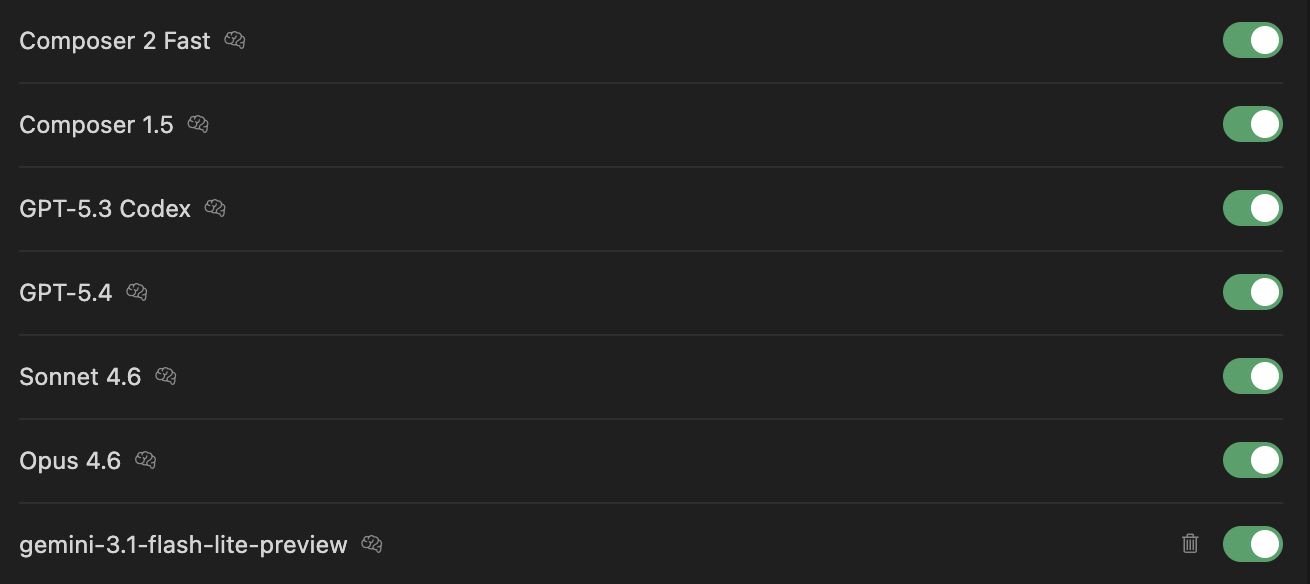
After configuring the API Key, enable the models you want to use by toggling them on in the Models list. The available models through Apertis include:
- Sonnet 4.6 — Claude Sonnet 4.6
- Opus 4.8 — Claude Opus 4.8
- GPT-5.3 Codex — OpenAI GPT-5.3 Codex
- GPT-5.4 — OpenAI GPT-5.4
For the full list of supported models, refer to the Model Support List.
If you are using an Apertis Subscription Plan, the models included in your plan are pre-configured. You can view and manage your subscription-supported models at Apertis Settings → Models.
Once enabled, the models will be available in the chat and composer interfaces.
Model ID Conflicts
Some model IDs (e.g., gpt-5.4) may conflict with Cursor's built-in model routing, causing requests to bypass Apertis entirely.
Solution: Add the apertis/ prefix to the model ID.
| Original | Cursor IDE Version |
|---|---|
gpt-5.4 | apertis/gpt-5.4 |
claude-sonnet-4-6 | apertis/claude-sonnet-4-6 |
code:claude-sonnet-4-6 | apertis/code:claude-sonnet-4-6 |
gpt-5.4:web | apertis/gpt-5.4:web |
The apertis/ prefix is automatically stripped at the API layer — billing, logs, and quota are unaffected.
You can find the Cursor-compatible model ID for each model on its detail page at apertis.ai/models.
The apertis/ prefix is only needed when you encounter model conflicts in Cursor IDE. Other tools (Claude Code, Kilo Code, etc.) can use the original model ID directly.